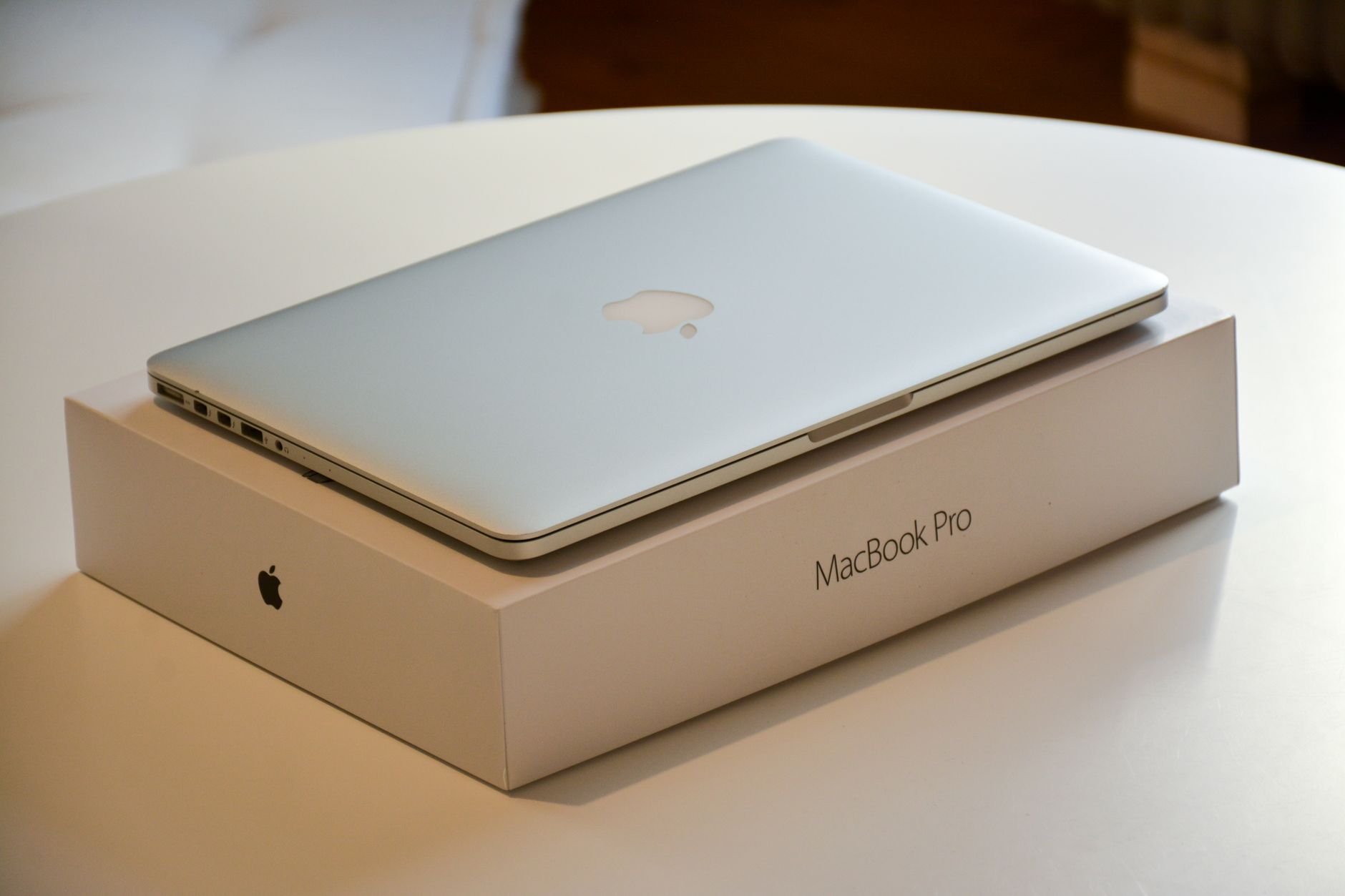
Apple has released official instructions for disabling the illuminated Apple logo on the latest MacBook Pro models equipped with the PROLED XDR display, a feature that returned after a ten‑year hiatus. While the glowing badge attracted enthusiastic applause at the product launch, the company acknowledges that some users prefer a non‑lit logo and now offers a simple Terminal command to turn it off permanently.
How the logo illumination works
The new MacBook Pro reintroduces the back‑lit Apple emblem on the lid, but unlike earlier generations that borrowed light from the display’s backlight, the current OLED‑based design uses a dedicated lighting system. As reviewer Chance Miller noted, the logo’s brightness is linked to the screen’s brightness setting and also adapts to ambient lighting detected by the built‑in sensor. In bright surroundings the logo shines more intensely, while in dim rooms it dims accordingly. When the laptop is closed, the logo appears as polished metal, matching the look first seen after the 2016 redesign.
Apple’s support document explains that the illumination activates whenever the computer is awake. The system continuously adjusts the logo’s intensity based on two inputs: the user‑selected screen brightness and the ambient‑light sensor’s reading of the surrounding environment. This behavior applies across the full range of screen‑brightness levels.
Disabling the logo via Terminal
For users who want the logo completely dark, Apple advises opening the Terminal application and entering a command that writes a preference to the CoreBrightness settings. The required line is:
sudo defaults write com.apple.CoreBrightness LEBacklightMode -int 0
The command must be executed with administrator privileges, which means the user will be prompted for the admin password. Once entered, the logo remains off regardless of screen brightness or ambient light.
Restoring the default behavior
Should a user later decide to restore the original behavior, Apple provides a reversal command that deletes the previously added preference:
sudo defaults delete com.apple.CoreBrightness LEBacklightMode
Running this command re‑enables the automatic illumination tied to the display and environment. Apple also notes that reinstalling macOS will clear the custom setting and cause the logo to light up again, effectively resetting the system to its default state.
The guidance follows observations shared by developer Gui Rambo on the social platform X, who highlighted the logo’s dependence on screen brightness and ambient conditions. Miller’s review and Rambo’s comments helped surface the need for an official way to control the feature, prompting Apple to publish the support article.
The ability to toggle the glowing logo aligns with Apple’s broader approach to give users granular control over hardware features. While the illuminated badge adds a visual cue of the device’s power state, the optional command ensures that users who find the light distracting or unnecessary can suppress it without third‑party tools.
The new MacBook Pro, featuring the PROLED XDR display, continues Apple’s push for high‑performance hardware combined with customizable software settings. The Terminal solution demonstrates that even seemingly cosmetic elements can be managed through built‑in macOS utilities, reinforcing the platform’s flexibility for power users and developers alike.

Mitchell Landsberg is a Senior Technology Correspondent at News Raise. He covers consumer electronics, artificial intelligence, software developments, and digital privacy trends.