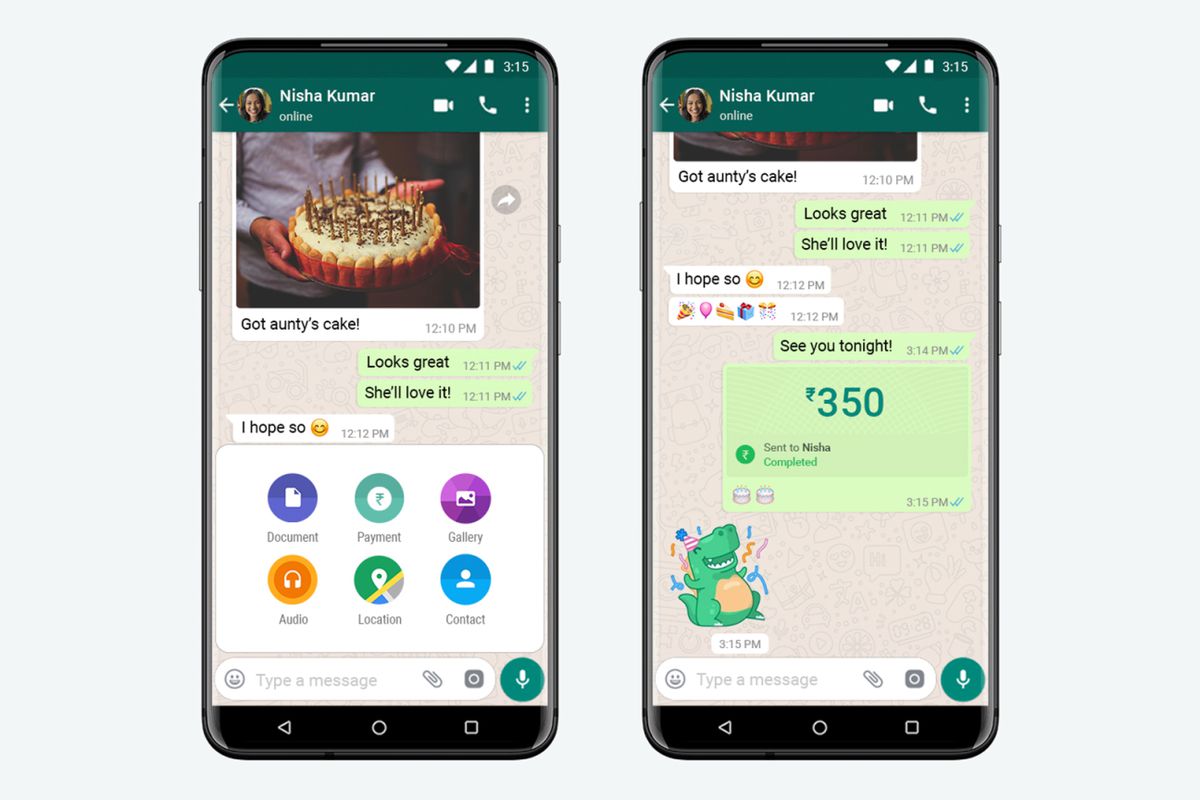
WhatsApp’s payment service WhatsApp Pay went live in India on Wednesday. For this, WhatsApp Pay has made 4 major banks of the India as its partner, including State Bank of India, HDFC Bank, ICICI Bank and Axis Bank. The payments feature of WhatsApp is based on the Unified Payment Interface (UPI) system of the National Payments Corporation of India (NPCI). NPCI approved WhatsApp payment service last month.
NPCI’s statement issued on November 5, 2020 said, “WhatsApp can expand its UPI user base in a graded manner starting with a maximum registered user base of 20 million in UPI.’
The WhatsApp Payments feature is designed in partnership with National Payments Corporation of India or NPCI and is a payment method based on Unified Payments Interface or UPI. To use this feature, the most important thing to keep in mind is that you are on the latest WhatsApp version of your Android or iOS. Apart from this, your WhatsApp number should be the same number which is linked to your bank account. After all this, to know how to use this feature, read this full article of ours-
Setup your WhatsApp Pay:
- First open WhatsApp and go to Settings and tap on Payments.
- Now tap on Add payment method and choose your bank.
- After choosing a bank, you will have to verify your mobile number. Now tap on Verify via SMS.
- Wait for the verification process to be completed. After the process is complete, your bank details will be added to the payment method below.
Make Payments using WhatsApp Pay:
- Open WhatsApp chat and click on the attachment icon.
- Now tap on Payment and type in the amount you want to send to someone and enter it.
- Now enter the UPI PIN and complete the payment process.
You can also send money to other Application users like Phone Pe and Google Pay using the Unified Payment Interface (UPI) system. You can follow the below steps:
- Open WhatsApp and go to Settings and tap on Payments.
- Now tap New Payment and then Send to a UPI ID. Then verify by entering UPI ID.
- After the UPI ID is verified, enter the amount and enter it.
- Enter the UPI PIN to complete the payment process.










Be First to Comment